

Insights
SQL Server Activity Monitor: A Practical Guide for 2026
Ben DeBow · July 27, 2026

It is 2am, a report is timing out, and the first thing most DBAs do is right-click the instance in SSMS and open Activity Monitor. It is the tool everyone starts with, and for a live “what is happening right now” glance it earns its place. The problem is what happens next: you need history, you need it across more than one instance, and you need to know what the slow query is actually costing. That is where the native tool runs out of road.
This guide covers what SQL Server Activity Monitor actually shows, how to use it well, exactly where it hits its ceiling, and what monitoring looks like once you outgrow it.
Key takeaways
- SQL Server Activity Monitor is the built-in SSMS dashboard for live activity: overview graphs, active processes, resource waits, data file I/O, and recent expensive queries.
- It is great for a single instance, right now. It is weak on history, multi-instance visibility, anomaly detection, and cost.
- Its hard limits: one instance at a time, almost no retained history, reactive by design, and zero insight into what a query costs.
- The step up is a platform that keeps per-minute workload history for up to 90 days, learns a baseline and flags anomalies, tells you what happened and how to fix it, manages the whole estate from one console, and puts a dollar figure on the workload. That is WISdom by Fortified: SQL Server performance monitoring with FinOps built in.
What SQL Server Activity Monitor shows
Open it from SSMS (right-click the instance > Activity Monitor, or Ctrl+Alt+A). You get five panes:
- Overview. Live graphs for % Processor Time, Waiting Tasks, Database I/O (MB/sec), and Batch Requests/sec. Your at-a-glance vital signs.
- Processes. Every active session: SPID, login, host, database, command, wait type, wait time, and blocking chain. This is where you spot the session that is blocking everyone else.
- Resource Waits. Waits grouped by category (CPU, memory, lock, network, buffer I/O, and so on). The fastest way to see whether the instance is CPU-bound, waiting on storage, or stuck on locks.
- Data File I/O. Read/write latency (ms) per database file. High latency here points at a storage problem, not a query problem.
- Recent Expensive Queries / Active Expensive Queries. The heaviest statements by CPU, reads, writes, and duration, with the plan a click away.
Used well, Activity Monitor answers “what is happening on this instance in the last few seconds” quickly and for free. For a lot of firefighting, that is genuinely enough.
Where the native Activity Monitor hits its ceiling
The limits are not bugs. It was built as a live dashboard, not a monitoring platform. But once you run more than a couple of instances, the gaps get expensive:
- One instance at a time. Every instance is its own window. There is no fleet view, no way to see your busiest system across the estate at a glance. With 50-plus instances this does not scale.
- Almost no history. Activity Monitor is a live view. Close it and the data is gone. When someone asks “what happened last Tuesday at 2am,” the native tool cannot answer, because it did not keep the data.
- Reactive, not proactive. It shows you a problem while it is on fire. It does not learn what normal looks like, so it cannot warn you that today’s workload is shaped differently before the pager goes off.
- No cost. It will tell you a query is expensive in CPU and reads. It will never tell you that query costs real money, or which database is driving your compute bill. For a team on the hook for the invoice, that is the missing half.
If any of those sound like your week, you have outgrown the built-in tool.
Beyond native: what a modern SQL Server activity monitor looks like
This is where WISdom by Fortified picks up. It does everything the native monitor does, then adds the layers SSMS was never meant to have: retained history, learned baselines, flexible grouping, and cost. Here is what that looks like in practice.
Workload activity, with the workload heartbeat and ML anomaly detection
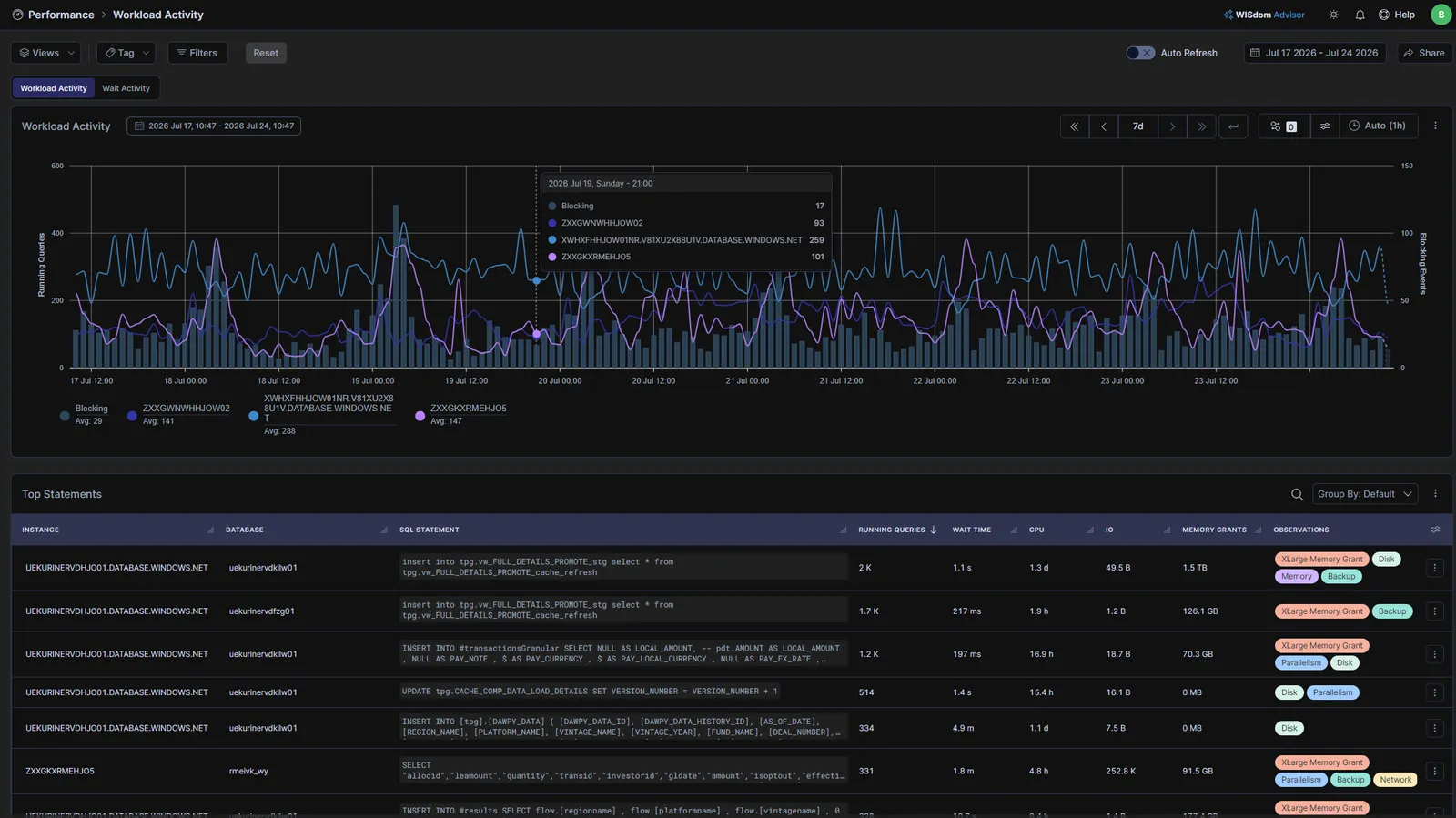
WISdom Workload Activity. The line is the count of running queries over time, the workload’s heartbeat. Day over day that line should hold its shape; a deviation means a different workload.
The count of running processes at a point in time is one of the best single indicators of workload shape. If Tuesday’s line suddenly looks nothing like last Tuesday’s, something changed. WISdom Advisor learns that baseline and uses machine learning to flag anomalies in blocking, deadlocks, and running-process count, so a different-shaped workload gets caught early instead of at 2am.
The Top Statements table underneath tags each statement by memory-grant size: Small, Medium, Large, and Extra Large. For a customer fighting memory pressure, that one column is gold. You filter to Extra Large and see every piece of code that requested a large memory grant, in seconds, instead of reverse-engineering it from DMVs.
Wait activity: the workload broken down by wait
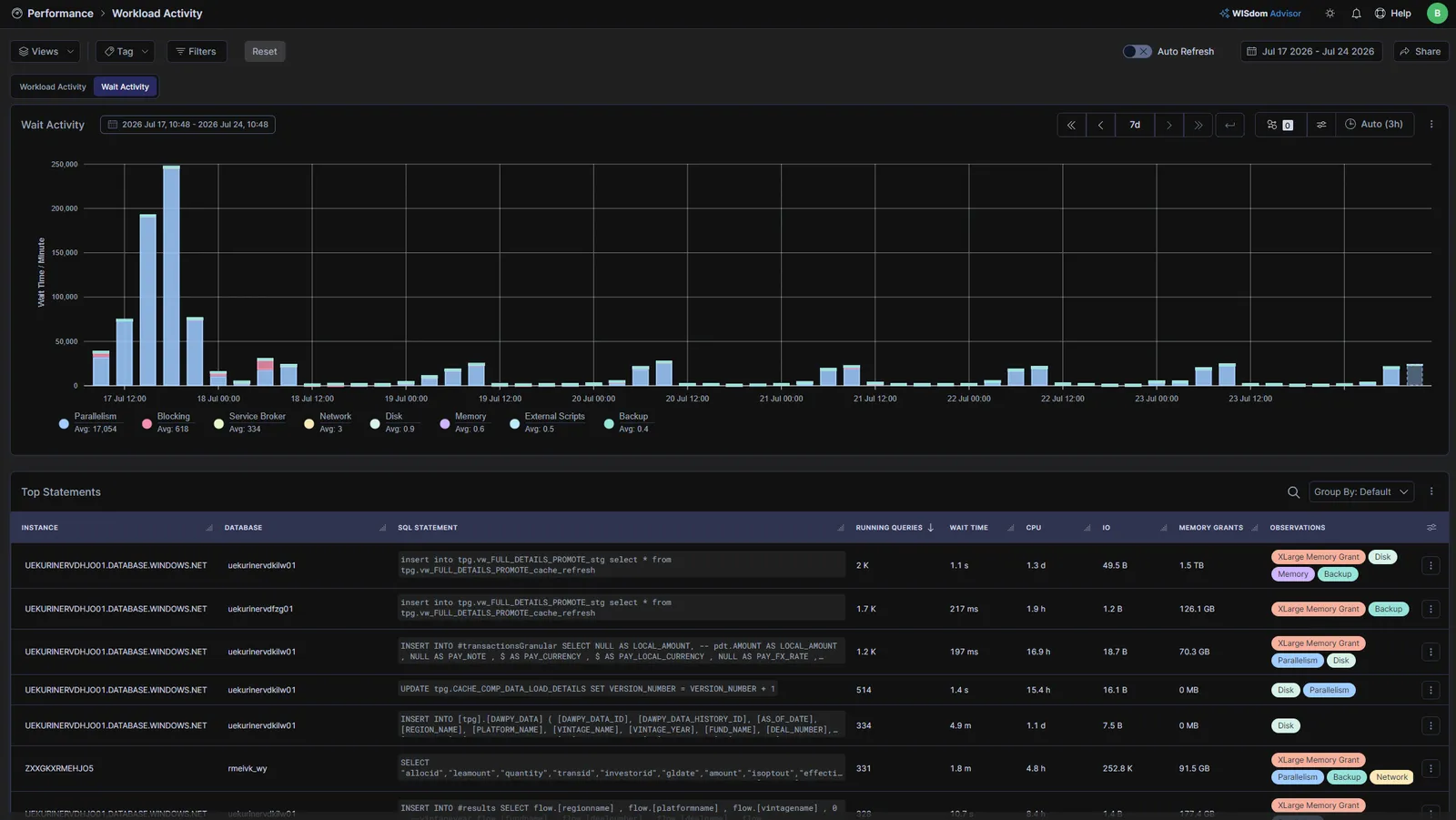
WISdom Wait Activity. The same workload, broken down by wait category so you can see whether the instance is spending its time on parallelism, blocking, I/O, or something else.
Resource waits in the native tool are a live snapshot. Here they are retained and trended, so you can see how your wait profile behaves over a full week and correlate a spike in blocking or parallelism with the exact window it happened in. This is the view that replaces the wait-focused workflow DBAs used to reach for a dedicated tool to get.
Group the whole workload six different ways
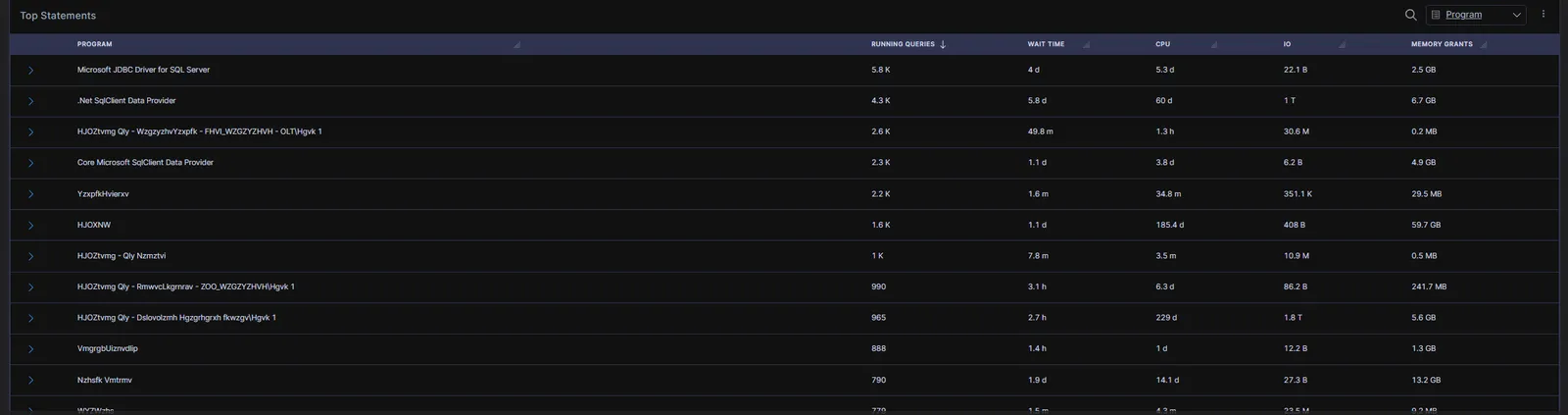
Top Statements grouped by Program. WISdom groups the whole workload six ways (Instance, Database, SQL Statement, Login, Program, or Connection Host). Grouped by program, you see every call each application is making and exactly what it costs in queries, waits, CPU, IO, and memory. That is what application development teams need to find and fix their own expensive code, instead of waiting for a DBA to tell them which app is the problem.
Native Activity Monitor gives you sessions. WISdom lets you pivot the entire workload six ways: by Instance, Database, SQL Statement, Login, Program, or Connection Host. Grouped by Program across the top systems over the last seven days, you can answer “which application is actually driving my load” without exporting anything. That is the difference between a live process list and a workload you can reason about.
One console for the whole estate
Native Activity Monitor is one instance per window. WISdom manages the entire estate from a single console: see every instance in one view, drill from the estate-wide picture straight down into any single system, and push profiles, tags, and alerts out to everything at once, changing configuration in seconds instead of connecting to each server by hand. Whether you run thousands of systems in one enterprise or hundreds of clients as an MSP, that is the difference between babysitting instances and running a fleet.
What Happened: the answer, not just the data
Here is the real shift. Every view above, and Activity Monitor itself, is very good at showing you things. You still have to know where to look: check blocking, then deadlocks, then activity, then the infrastructure dashboards, and piece the story together yourself. What Happened flips that. It continuously checks the scenarios that actually go wrong in a SQL Server system and tells you, in seconds, what kind of situation it is seeing and how to fix it. You stop asking “let me go look at six dashboards to figure out what broke” and start asking “what happened, and what do I do about it.” That changes how a DBA solves problems. Seeing is table stakes. Telling you what it sees, and handing you the fix, is the leap.
The thing native monitoring never had: history and cost
Two capabilities tie it together:
- Up to 90 days of per-minute workload history. WISdom captures execution/request data every minute and keeps it for up to 90 days, so you can go back and troubleshoot at a granular level long after the incident. Many tools keep only days of detail, not months. When someone asks what happened last Tuesday, you actually have the data.
- A dollar cost on the workload. This is the FinOps layer. WISdom attributes cost down to the query and stored proc, so you can Find the expensive query, Fix it grounded in the execution plan, and Prove the savings in a number Finance can read. One very large SaaS company cut roughly one million dollars in cost by optimizing a single query WISdom surfaced.
Native Activity Monitor vs WISdom, side by side
Capability
SSMS Activity Monitor
WISdom by Fortified
Live activity on one instance
Yes
Yes
Fleet view across all instances
No
Yes
Manage the whole estate from one console (push profiles/tags/alerts)
No
Yes
Retained per-minute history
No (live only)
Up to 90 days
Learned baseline + ML anomaly detection
No
Yes
Automated diagnosis + fix guidance (What Happened)
No
Yes
Group workload by 6 dimensions
No
Yes
Memory-grant sizing + filtering
Manual (DMVs)
Built in (S/M/L/XL)
Dollar cost per query
No
Yes
Deployment
Built into SSMS
Agentless, ~30 days
Frequently asked questions
What is SQL Server Activity Monitor?
It is the built-in monitoring dashboard in SQL Server Management Studio (SSMS) that shows live activity on an instance: processor time, waiting tasks, I/O, active processes, resource waits, and recent expensive queries. Open it with Ctrl+Alt+A or by right-clicking the instance in SSMS.
How do I open Activity Monitor in SSMS?
Right-click the SQL Server instance in Object Explorer and choose Activity Monitor, or press Ctrl+Alt+A. You need VIEW SERVER STATE permission.
Does SQL Server Activity Monitor keep history?
No. It is a live view. Once you close it, the data is gone. To troubleshoot past incidents you need a monitoring platform that retains history. WISdom keeps per-minute workload data for up to 90 days.
Can Activity Monitor monitor multiple instances at once?
No. It shows one instance per window. For a fleet view across many SQL Server or Azure SQL instances you need a dedicated tool.
What is the best SQL Server Activity Monitor alternative?
For teams that have outgrown the native tool, WISdom by Fortified adds multi-instance visibility, up to 90 days of per-minute history, ML anomaly detection, six-way workload grouping, and query-level cost attribution. It is agentless and deploys in about 30 days, with a 30-day free trial.
Does Activity Monitor show query cost?
No. It shows resource usage (CPU, reads, writes, duration) but not dollar cost. Query-level cost attribution requires a FinOps-capable platform like WISdom.
Can a tool tell me what caused a SQL Server problem, not just show me the data?
Yes. WISdom’s What Happened feature continuously checks the scenarios that commonly go wrong (blocking, deadlocks, resource pressure, and more) and reports in seconds what kind of situation it found and how to fix it, so you are not manually correlating six dashboards to reconstruct an incident.
The bottom line
Native SQL Server Activity Monitor is the right first tool: free, built in, and fine for a live look at one instance. But it does not remember, it does not warn you, it does not scale across the estate, it never tells you what a query costs, and it shows you the data without telling you what actually happened. The best DBAs stop asking “which dashboard do I check” and start asking “what happened, and what do I do about it.” When you are ready to ask the better question, that is the signal to move up to a platform built for it.
See it on your own estate. Start a 30-day free trial of WISdom. No credit card, real numbers in minutes.